Global Buttons
Introduction
A Global Button is a feature that allows users to an perform additional action on a wizard step without interrupting their workflow.
The action is executed as background processes that can update the underlying data. Once a process is completed, the latest data can be displayed by refreshing the affected steps.
Typical use cases include importing planning data before product selection, importing media assets (such as main images or logos) before document customization, and other preparatory tasks.
Key Features
A Global Button is a configurable component that allows administrators to define a process or action that can be executed from a wizard step. Global Buttons help reduce duplication by centralizing process definitions while maintaining step-specific execution behavior and user interaction.
A single wizard step can be configured with multiple global buttons.
Currently, only Process Global Buttons are supported. Additional button types are planned for future releases.
Process Global Button
A Process Global Button is a Global Button that provides process functionality similar to a PROCESS step, but can be triggered from any configured wizard step.
- Users can interact with the process after clicking the button, similar to a PROCESS step. This includes:
- Completing the start form
- Viewing and completing user tasks
- Reviewing completed tasks and process history
- The process status is updated in real time, even if users close the dialog, navigate to other wizard steps, or reload the page.
- A toast notification is displayed when the process completes, allowing users to jump back to the step from which the process was initiated.
- While a Global Button can be referenced in multiple wizard steps, we do not recommend using the same process across different steps. Process instances started from a Global Button are associated with the wizard step from which they were initiated. As a result, if a user starts a process in one step, the process results will only be available in that step. To review results, or complete any follow-up actions, the user is expected to return to the step where the process was originally started.
Sample Screenshots
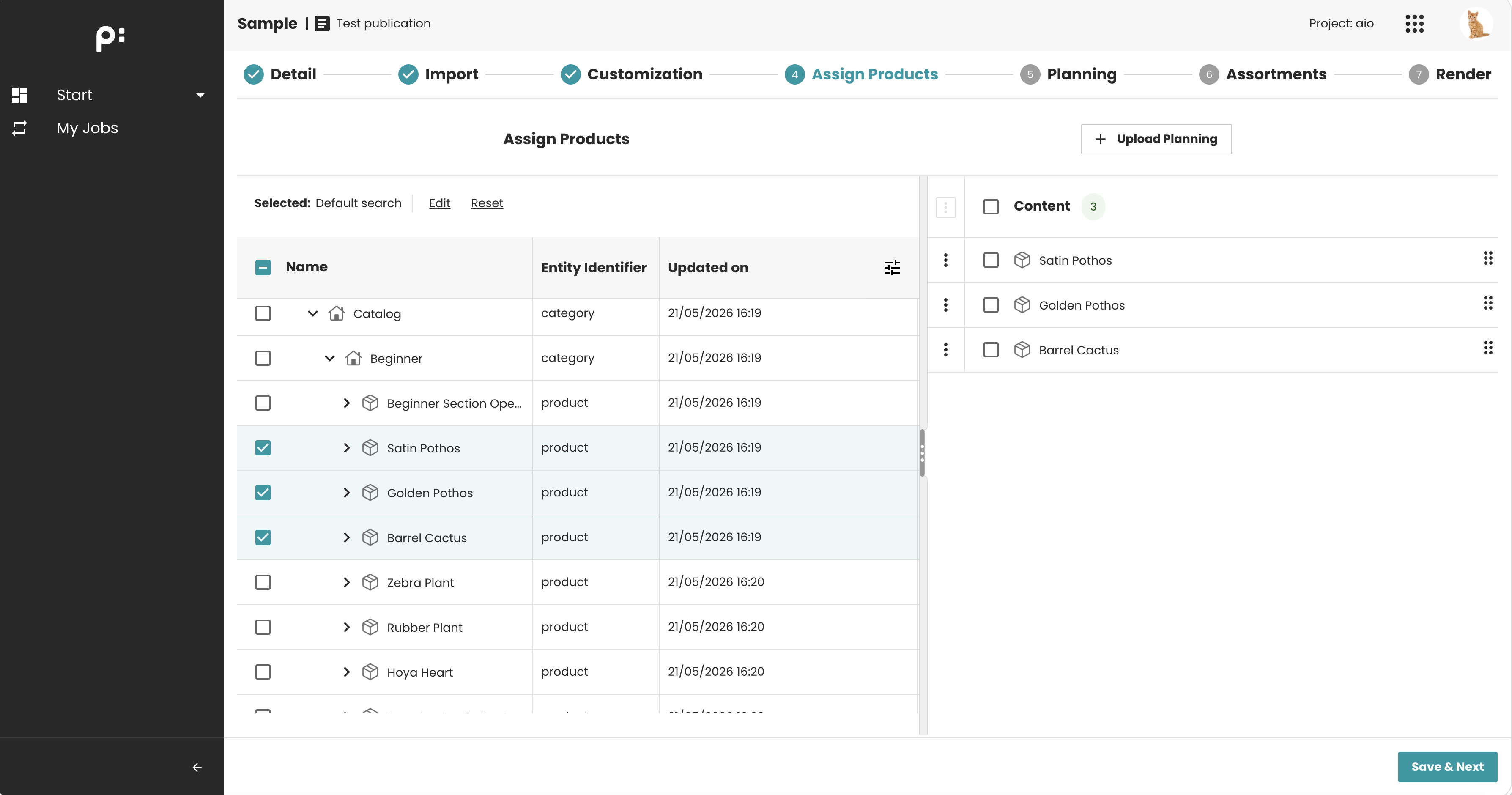
The Global Button is shown on the Wizard step.
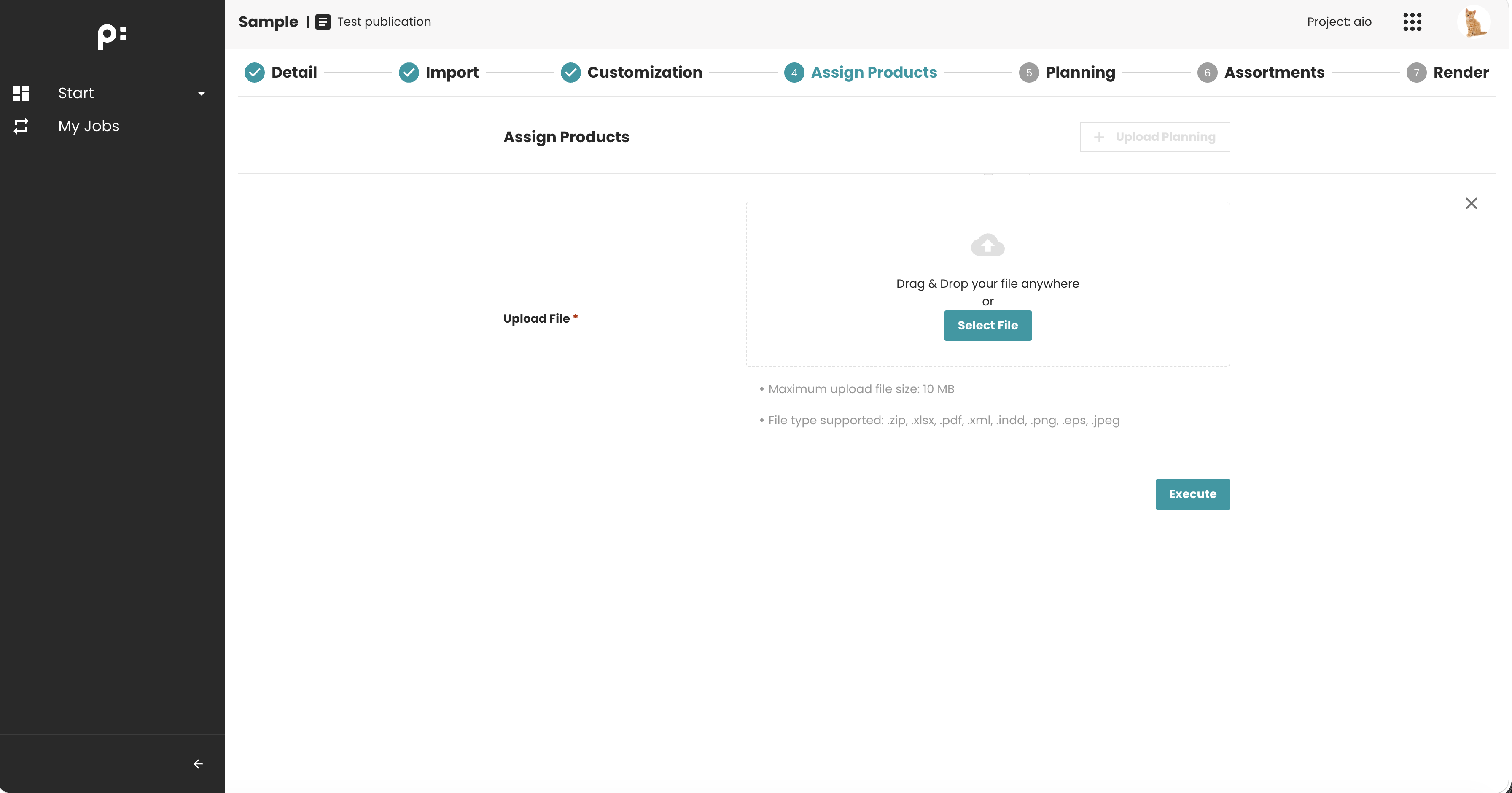
Click on the Global button → open the Process Start Form dialog.
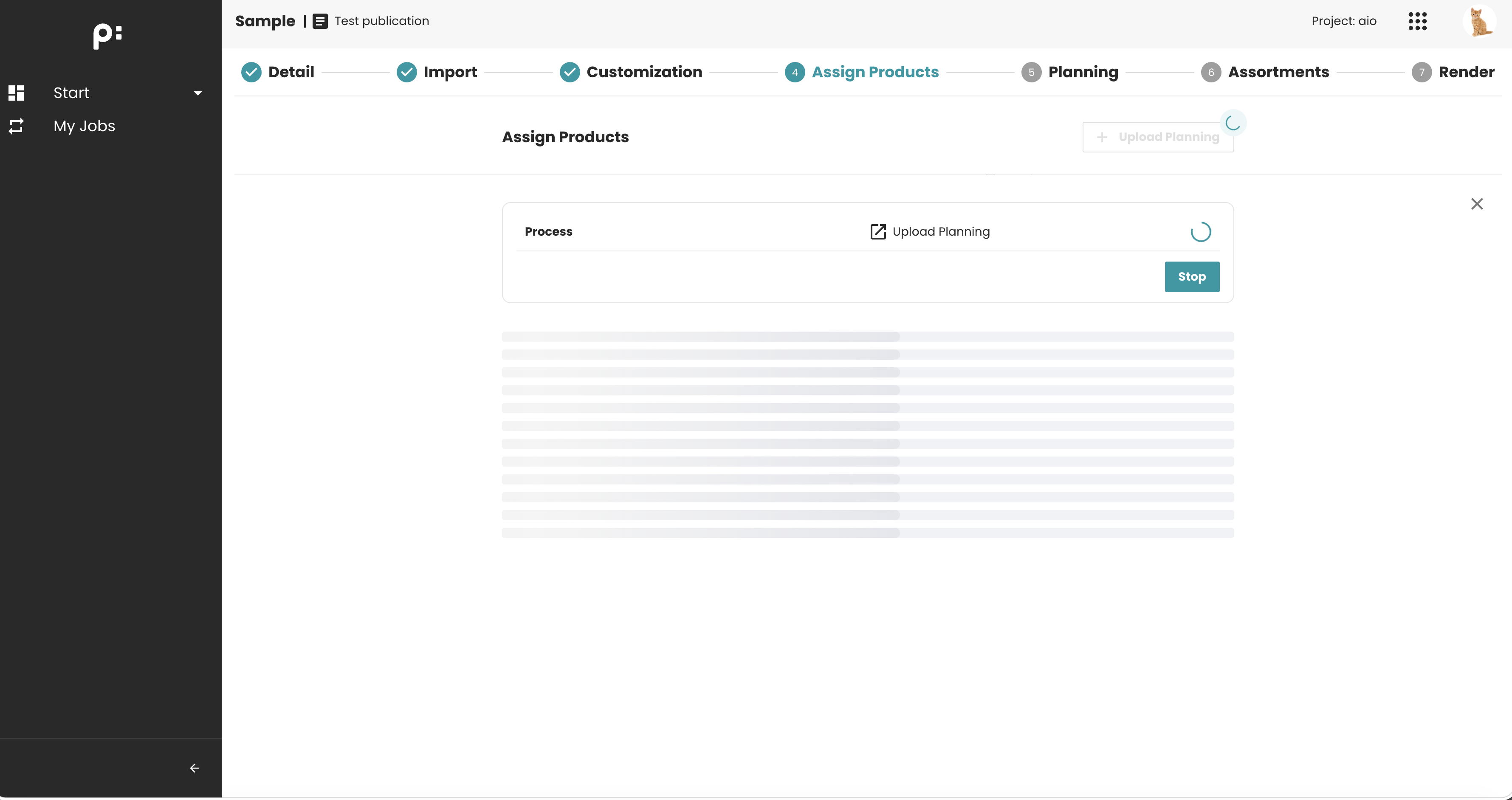
The Global button process is running.

The Global button status is updated when a user task is triggered but the dialog is already closed.
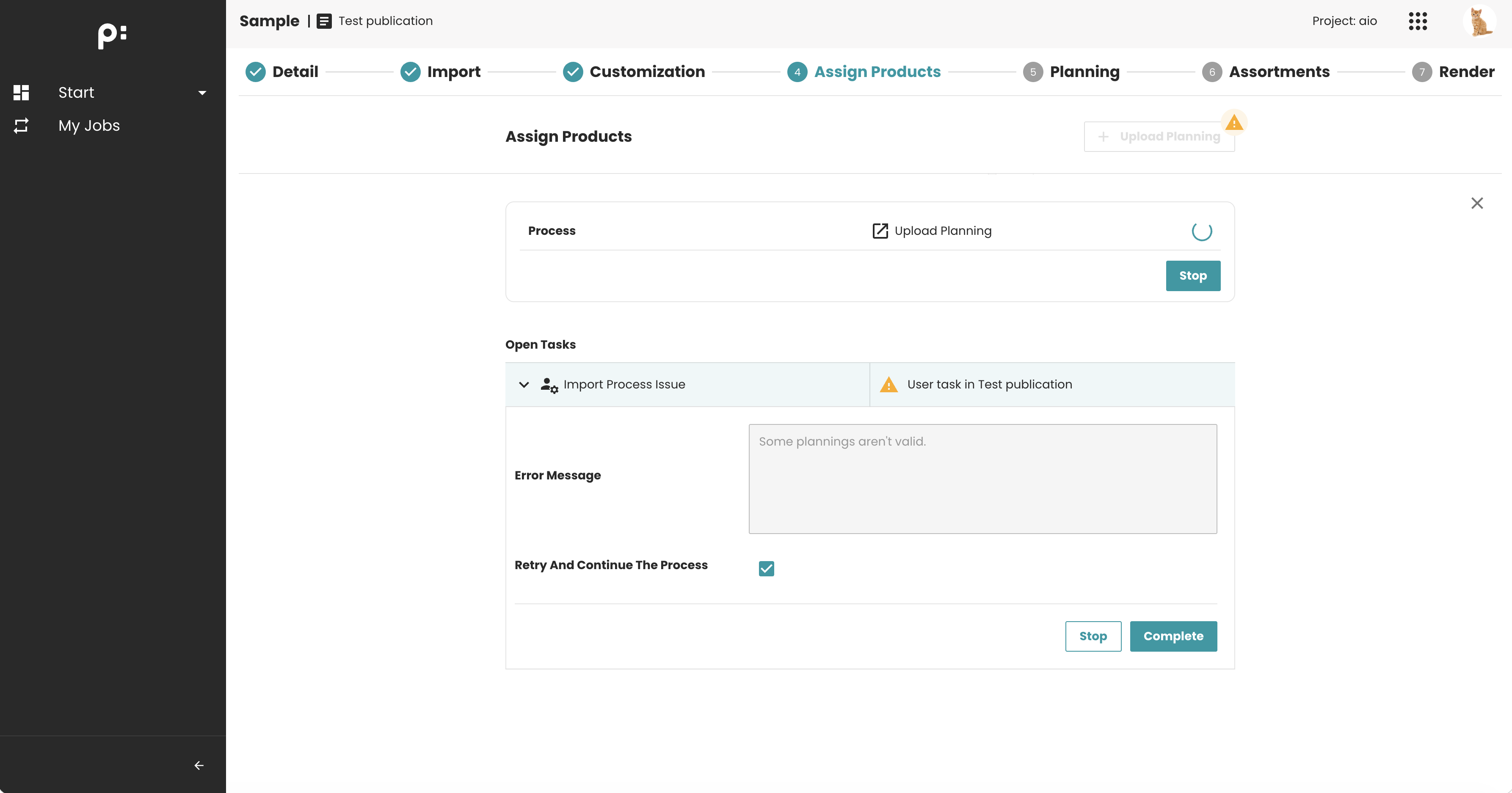
The Global button User task form.
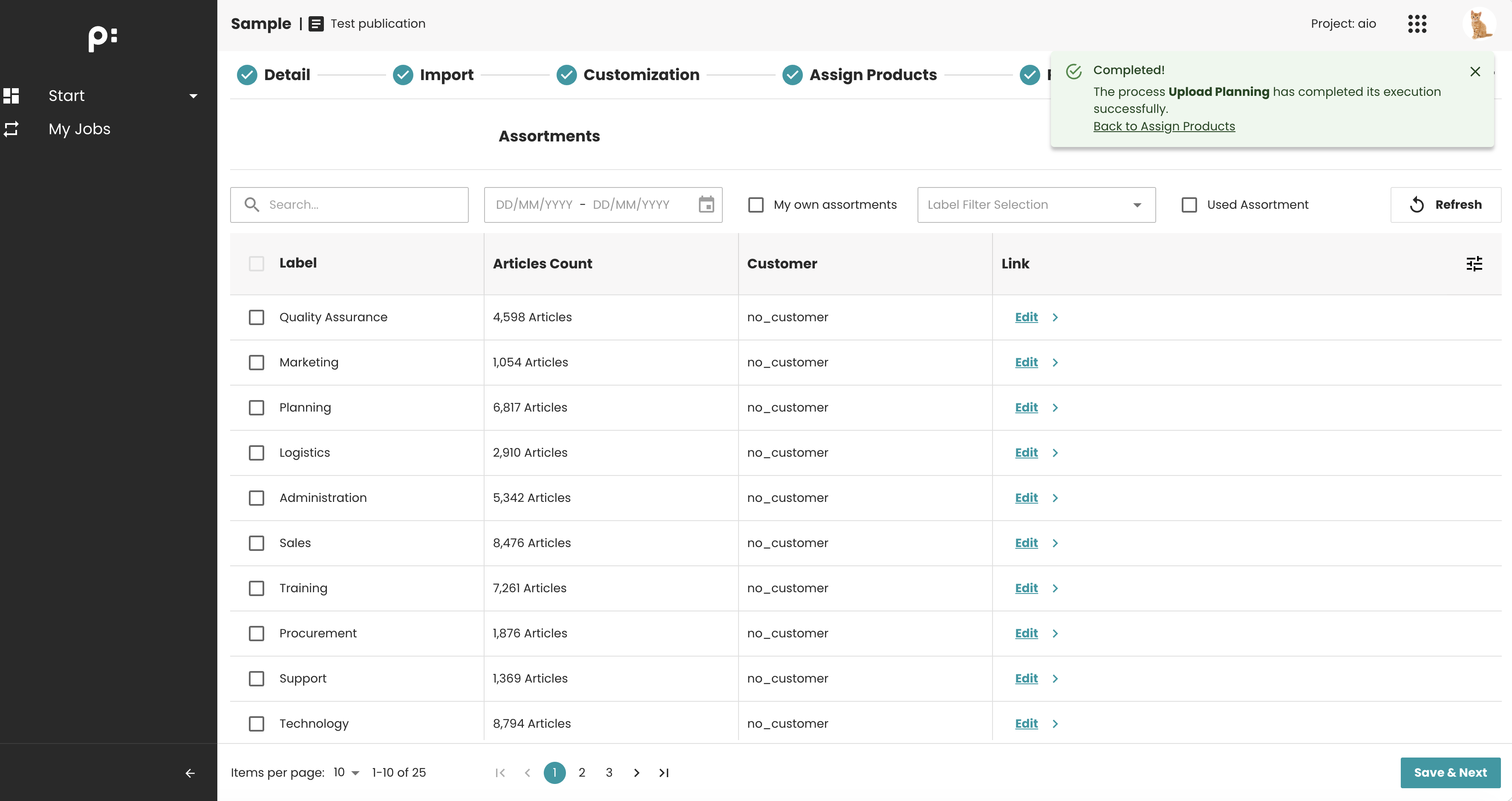
Toast message is shown if the Global button process is finished.
Configuration
All Global Buttons configurations are stored and maintained in the JSON configuration.
Sample Configuration
Register a Global Button
<globalButtons>
    <globalButton id="upload_planning">
        <parameters>
            <parameter id="process_def_key">UPLOAD_PLANNING_PROCESS</parameter>
        </parameters>
        <label>Upload Planning</label>
    </globalButton>
</globalButtons>
Add a Global Button to a Wizard Step
<wizardStep id="assign_products">
    ...
    <parameters>
        ...
        <parameter key="global_button">upload_planning</parameter>
    </parameters>
</wizardStep>
Configuration Elements
<globalButtons>
The parent container that holds the configuration of all Global Buttons.
<globalButton>
Defines the configuration of a single Global Button.
Attributes
id: A unique identifier for the Global Button. This ID must match the value configured in the wizard step parameter with the keyglobal_button. This attribute is mandatory.
Elements
<parameters>: A collection of parameters used to configure the Global Button.<parameter>: Defines an individual configuration parameter. For a Process Global Button, the following parameter is currently supported:id="process_def_key": Specifies the process definition key that should be executed when the button is clicked.